 Gherkin Studio
Migration guide
Migrate from Behave Pro before 31 January 2027
Atlassian Connect reaches end of support on 31 January 2027. This guide moves your scenarios to Gherkin Studio without losing work. Keep Behave Pro installed until you've checked everything.
Before you start
- You need to be a Jira admin to import, and a project admin to connect Git.
- Pick a quiet time and ask your team not to edit scenarios during the import.
1. Export from Behave Pro
Git-integrated projects: your features are already in your repository. Use those files.
Classic projects: export all features of a project as a zip. Behave Pro documents a project export endpoint (Basic auth with your Behave Pro API key):
https://behave.pro/rest/cucumber/1.0/project/<projectId>/features?manual=trueSource: Hindsight: Exporting All Features by Project. Use manual=true to include scenarios marked as manual.
1b. Coming from Cucumber for Jira?
Its features live in your Git repository, with scenarios tagged @KEY-123. Download the .feature files (or a zip of the folder) from your repository.
2. Install Gherkin Studio
From the Atlassian Marketplace, once it's live. The first 3 months are free.
3. Import
- Open Jira settings → Apps → Gherkin Studio.
- Choose where you're coming from, optionally limit to certain project keys, and upload the zip or the
.featurefiles. - Read the preview. Each feature or scenario is matched to a story by its
@KEY-123tag, a# Jira: KEY-123comment in the file header, or a file name likeKEY-123.feature. Several files for one story are joined into one valid feature. - If a story already has scenarios, choose Skip (default), Add after the existing ones, or Replace.
- Press Import and check the result column. Files we could not match are listed with the reason.
4. Connect Git (optional)
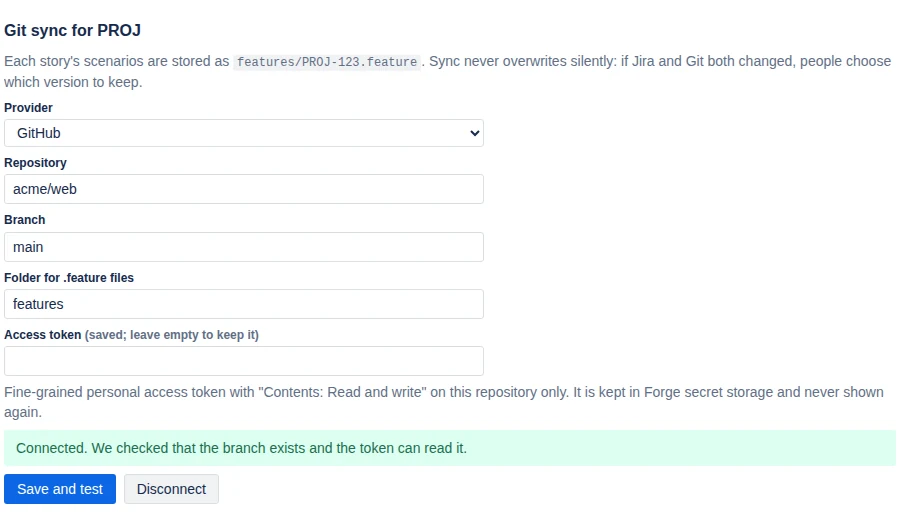
In Project settings → Gherkin Studio, pick GitHub, GitLab.com or Bitbucket Cloud, the repository, branch and folder, and paste a token with write access to that repository only. We test the connection before saving. Each story syncs to <folder>/KEY-123.feature.
5. Send test results (optional)
In Apps → Gherkin Studio, create a CI token, save it as a secret in your CI, and add one step after your tests:
curl -X POST "$GHERKIN_STUDIO_URL?build=$BUILD_URL" \
  -H "Authorization: Bearer $GHERKIN_STUDIO_TOKEN" \
  -H "Content-Type: application/json" \
  --data-binary @cucumber.json
6. Check, then switch off the old app
- Open a few stories and compare with Behave Pro.
- Run your test suite once and check the results appear on the stories.
- When you're happy, uninstall the old app. Your Git repository is untouched either way.
Stuck? Write to us. We're happy to help you through it.